Introduction
This guide explains how to properly send a load to the Motive app to ensure seamless assignment.
Procedure
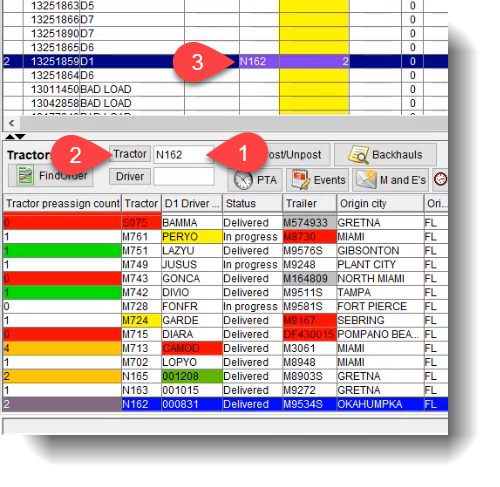
- Enter the tractor number, then press "Tractor" or hit the Enter key.
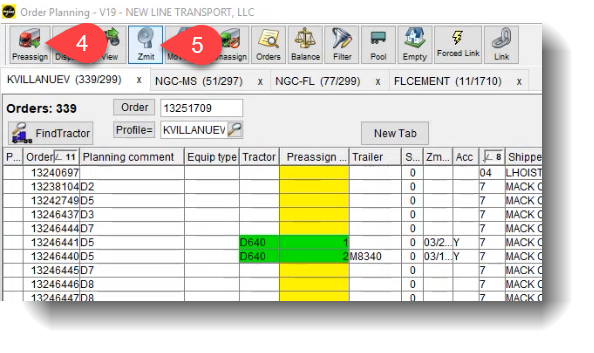
(Ensure the correct driver is selected, as it may jump to another driver.) - Click on the load you wish to assign to the driver and select "Pre-Assign" to assign the driver.
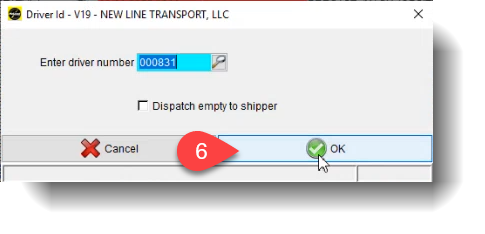
- Click on the load to highlight it. Then, at the top of the toolbar, press "Z-Mit" and click "OK" to send.
Final Note
If you need further assistance, contact Transport Support.
Glossary
- Pre-Assign: Assigns a driver to a specific load before dispatch.
- Z-Mit: The function used to transmit assigned loads to the Motive app.